
CLS
Microsoft Excel Masterclass

Microsoft Excel Masterclass

Total Duration 28 Hours
Level Beginner / Intermediate
Delivery Mode
Virtual Learning Public Classroom
Available Schedules
Book your Seat Now

Skills you'll learn

11 skills
Excel Formula and Function
Printing and Page Layouts
Excel Productivity
Excel Charting
Sorting and Filtering Data
Pictures, Shapes & SmartArt
Excel Tables
PivotTable
Excel Formula Auditing
Excel Data Validation

Prerequisites

Computer literacy and basic knowledge of the Windows interface
Use of keyboard and mouse and typing skills

Course Outline

This isn't just a course. It's a structured path designed to turn you into a specialist ready for the global job market.

  • Launching Excel and creating new workbooks
  • Saving workbooks
  • Understanding the Status Bar
  • Managing worksheets (add, delete, reorder, move, copy)
  • Splitting the worksheet view
  • Closing workbooks
  • how to work with the Ribbon
  • Tabs, Groups
  • Commands
  • Identifying commonly used Ribbon tools
  • Introduction to the Backstage View
  • Opening a Workbook
  • Open a Workbook
  • New Workbooks and Excel Templates
  • Select, Open and Save a Template Agenda
  • Printing Worksheets
  • Print a Worksheet
  • Adding Your Name to Microsoft Excel
  • Adding Common Commands
  • Adding Additional Commands with the Customize Dialog Box
  • Customize the Quick Access Toolbar
  • Entering Text
  • Adding and Deleting Cells
  • Adding a Hyperlink
  • Add WordArt to a Worksheet
  • Entering Text and Using AutoComplete
  • Entering Numbers and Dates
  • Entering Numbers and Dates
  • Selecting Ranges of Cells
  • Adding Color to Worksheet Tabs
  • Customize a Workbook Using Tab Colors and Themes
  • The Font Group
  • Working with Font Group Commands
  • The Alignment Group
  • The Number Group
  • Working with Number Group Commands
  • Mathematical operators
  • AutoSum (and Other Common Auto-Formulas)
  • Copying Formulas and Functions
  • Relative, Absolute, and Mixed Cell References
  • Working with Formulas
  • Inserting Rows and Columns
  • Deleting Rows and Columns
  • Transposing Rows and Columns
  • Hiding and Unhiding Rows and Columns
  • Freezing Panes
  • Find and Replace
  • Clipboard operations
  • Format Painter
  • Managing comments
  • Setting Page Orientation
  • Setting the Print Area
  • Print Scaling (Fit Sheet on One Page)
  • Printing Headings on Each Page/Repeating Headers and Footers
  • Using Named Ranges in Formulas
  • Using Formulas That Span Multiple Worksheets
  • IF, PMT, LOOKUP, VLOOKUP, HLOOKUP functions
  • CONCAT, TRANSPOSE, PROPER, LEFT, RIGHT, MID
  • Using Date Functions
  • Creating scenarios
  • Creating and formatting tables
  • Converting a List to a Table
  • Removing Duplicates from a List
  • Sorting Data in a List
  • Working with Clip Art
  • Using Shapes
  • Working with SmartArt
  • Using Office Ink
  • Inserting Charts
  • Editing Charts
  • Using Chart Tools
  • Using the Quick Analysis Tool
  • Create a Custom Chart Template
  • Format Data as a Table
  • Move between Tables and Ranges
  • Creating and Modifying a Table in Excel
  • Applying Conditional Formatting
  • Using Conditional Formatting
  • Working with Styles
  • Creating and Modifying Templates

Target Audience

Designed to meet the needs of learners at different career stages, empowering them to build user-centered digital experiences

Professionals seeking to enhance their Excel proficiency in their jobs
Finance and Accounting Professionals
Professional working with data, reports, or spreadsheets daily
Anyone Looking to Improve Excel Skills
Learning outcomes

What you'll learn

Use of formulas and functions to perform calculations.
Making changes and modifications to the structure and content of the worksheets.
Improving data presentation through use of formatting techniques.
Efficient organization and management of Excel workbooks.
Setting up and printing worksheets with custom options.
Use of useful features of Excel to increase efficiency.
Creation and modification of different types of charts.
Sorting and filtering of data lists.
Insertion and customization of illustrations including images, shapes, and SmartArt.
Work with Excel tables.
Data generation and analysis through use of PivotTables and Pivot Charts.
Tracing of precedents and dependents in the formulas for auditing.
Text conversion, validation, and consolidation of data from different sources.
Protection of worksheets and workbooks for collaborative efforts.
About this course

About this course

Microsoft Excel training is designed to take learners from foundational to advanced proficiency in Microsoft Excel — the world’s most powerful spreadsheet tool. 

You’ll learn formatting worksheets, using essential formulas — and progress to mastering advanced tools like PivotTables, VLOOKUP/XLOOKUP, dashboards, and data modelling techniques.
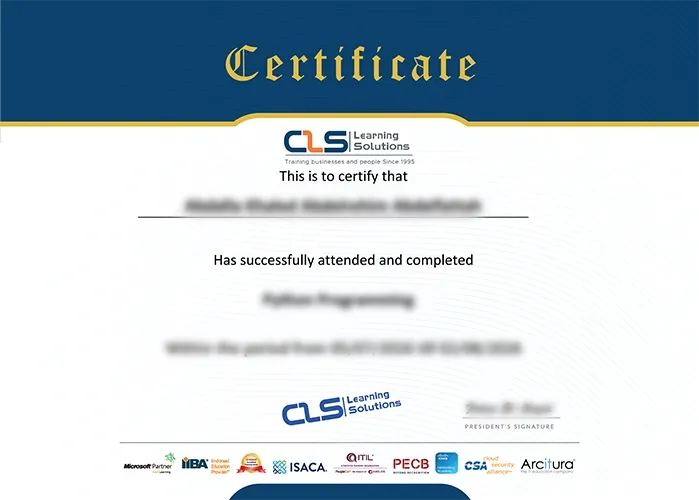
Accredited Credentials

  • Attendance Certificate from CLS Learning Solutions 
Microsoft Excel Masterclass

Potential Career Paths

Data Entry
Office Administrator
Finance Assistant
Accountants
Operations Coordinator
Data Analyst
Financial Analyst